
Using Overseer
This guide covers the main Overseer views, Sidebar Mode and the tools used to export data, refresh detected hardware and diagnose a problem. It complements the Readings guide, which explains the sensors themselves.
Main Views
Temps
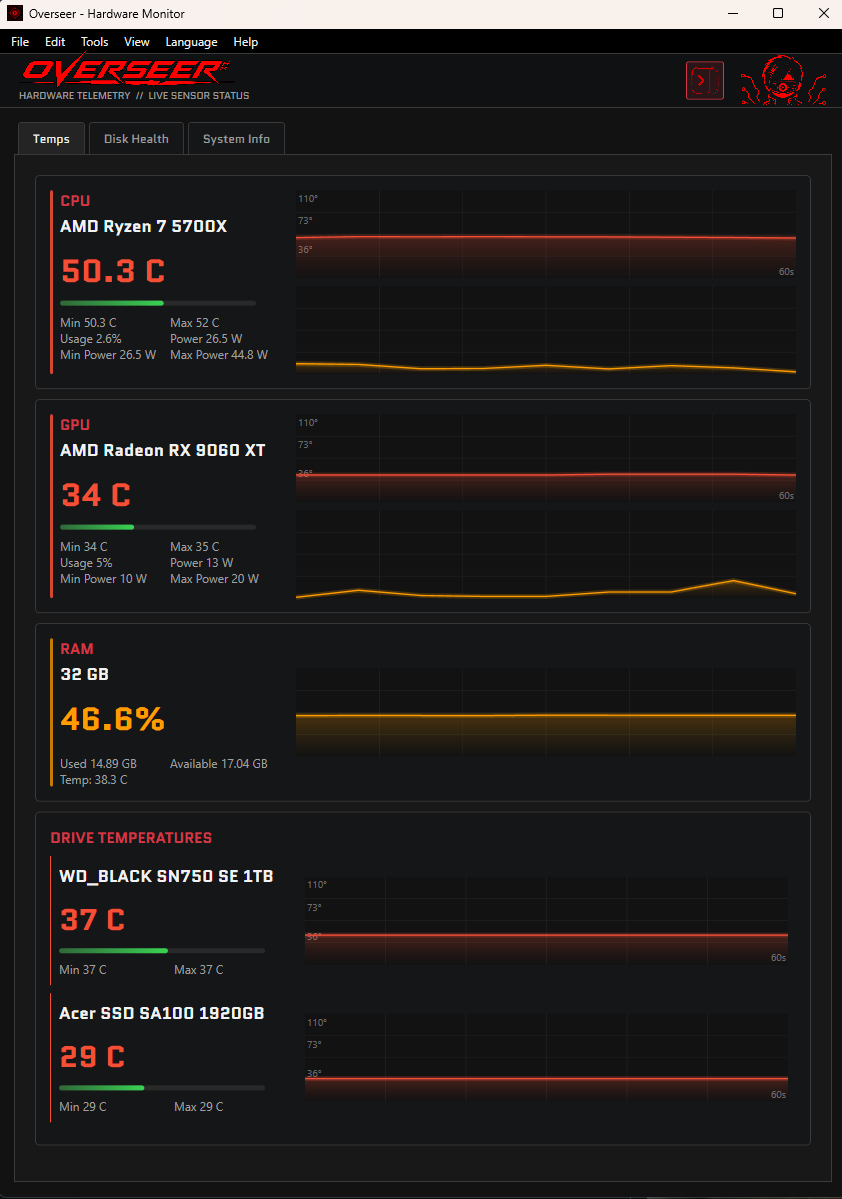
The Temps view shows available CPU, GPU, RAM and drive readings. CPU and GPU cards can show temperature, utilization, power, session minimum and maximum values, and recent history charts. Drive cards show the detected drive temperatures and their recent history.
Disk Health
Disk Health starts with a compact drive summary. Expand a drive to view available identity and ATA or NVMe SMART details. Detailed data depends on the drive, connection and smartctl support; a basic drive summary remains available when detailed data cannot be read.
System Info
System Info combines detected Windows and hardware information for CPU, installed memory, GPU, motherboard, BIOS, operating system, battery, display, audio and active network details. Network addresses are masked by default and can be revealed when needed.
Sidebar Mode
Open View > Sidebar Mode to show a compact, dockable overlay while another application is in use. The sidebar can display FPS, CPU, GPU, RAM, drives and network activity.
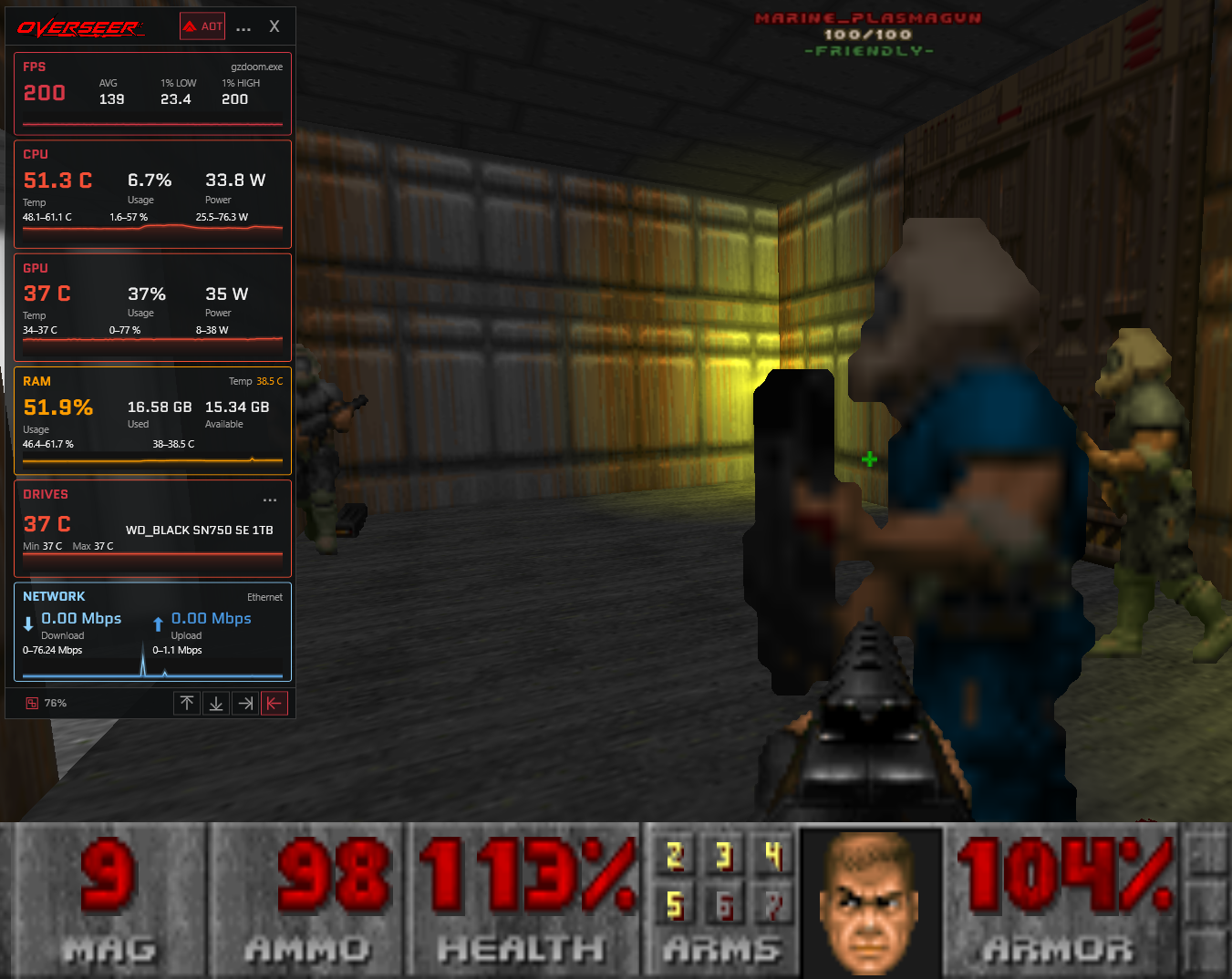
Use the header menu to show or hide modules and range rows. The drive card menu selects the drive shown by that card. Sidebar settings persist between launches, including placement per monitor.
FPS
FPS uses the bundled PresentMon component only while the FPS module is visible. It follows a compatible active 3D application. When no compatible application is presenting frames, the value is shown as unavailable instead of a fabricated zero.
Docking and Click-Through
Use the footer controls to adjust opacity, dock the sidebar to an edge of the current monitor and toggle click-through. In click-through mode, the overlay body forwards pointer input to the application behind it while its header controls remain usable.
Tools, Exports and Controls
Export and Copy
Use the File menu to export monitoring data as TXT or CSV, export a screenshot, copy the current tab or copy all tabs. These exports can be useful when comparing a reading over time or preparing a support report.
Refresh System Information
Use Tools > Refresh System Information after connecting or removing displays, adapters or other hardware. This re-reads static system, display and network information.
App Log
Use Tools > Open Log when investigating a machine-specific problem. The log can include startup, provider, smartctl and PresentMon failures. Remove personal data, serial numbers, MAC addresses and IP addresses before sharing log lines.
View and Language Settings
The View menu includes Always On Top, Minimize to Tray and Reset Statistics. Language and temperature-unit settings are selected from the menus; English and Spanish are currently available.
Alerts and Status
Alert sounds are enabled from the Tools menu and can draw attention to sustained temperature or drive-health conditions. Overseer uses cooldowns and re-arm behavior to avoid repeated alerts from brief sensor changes.
Alert states are monitoring aids, not universal safety limits. Use the specifications for the exact CPU, GPU or drive when deciding whether a reading needs action.